

How to use
How to use AlignHour
Book a meeting in your client's time, see everyone's local time, and never miss one. Each step takes a few seconds.
Web app (phone and laptop)
-
Sign in
Open app.alignhour.com and press Continue with Google. Tick "calendar" when Google asks, so AlignHour can send invites from your own calendar. On a phone, choose "Add to Home screen" to use it like an app.
-
Home: your next meeting and the clocks
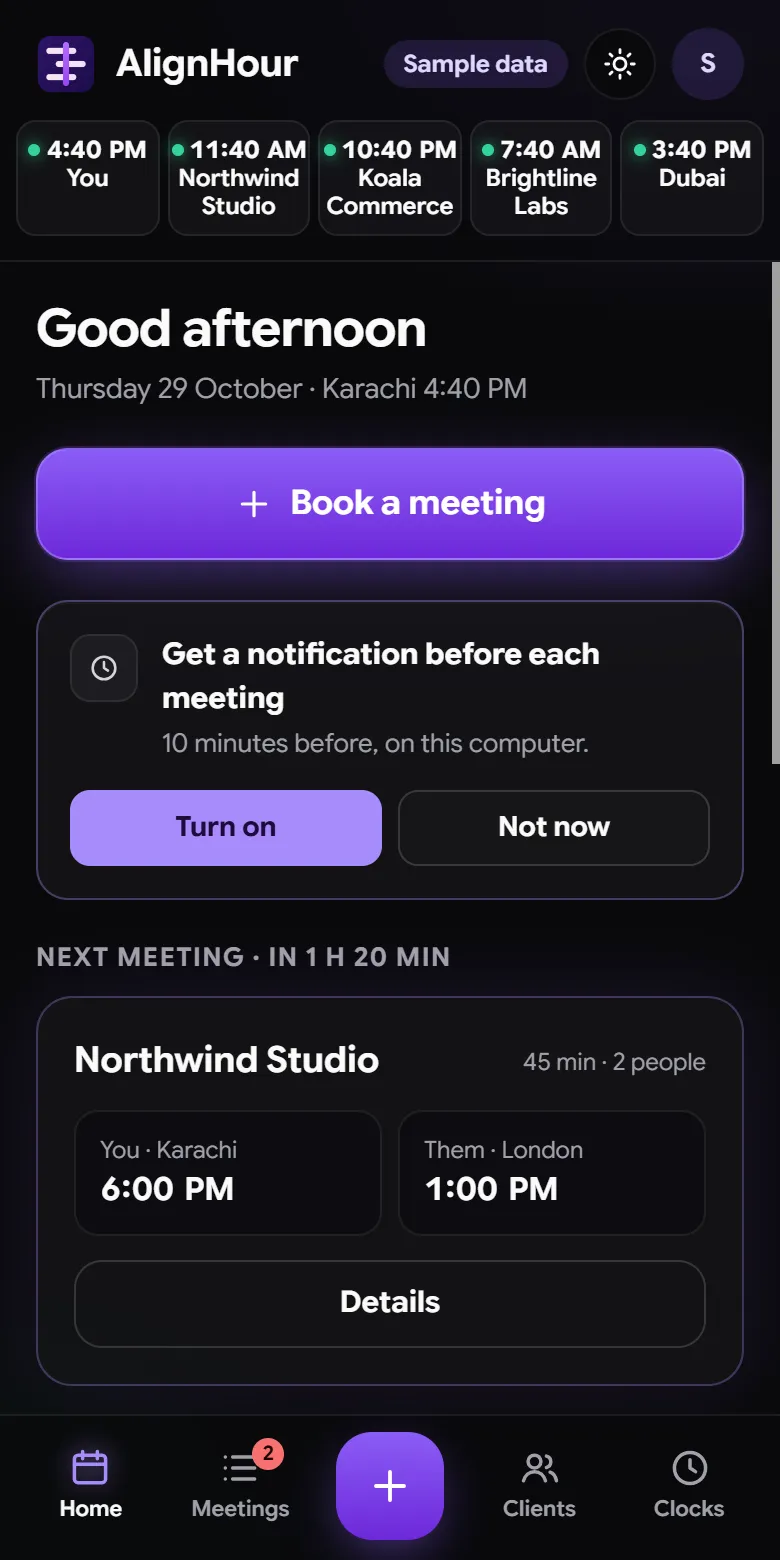
The top row shows the time now for you and your clients. Right-click a clock (or press and hold on a phone) to change, add or remove one. Press Turn on to get a notification 10 minutes before each meeting, with a Join button.
-
Book a meeting: who
Press Book a meeting and pick a client or team. To invite someone new, type their email and press Enter (or a comma). Tap a person to change their name or city, or press × if they aren't joining this time.
-
Book a meeting: when
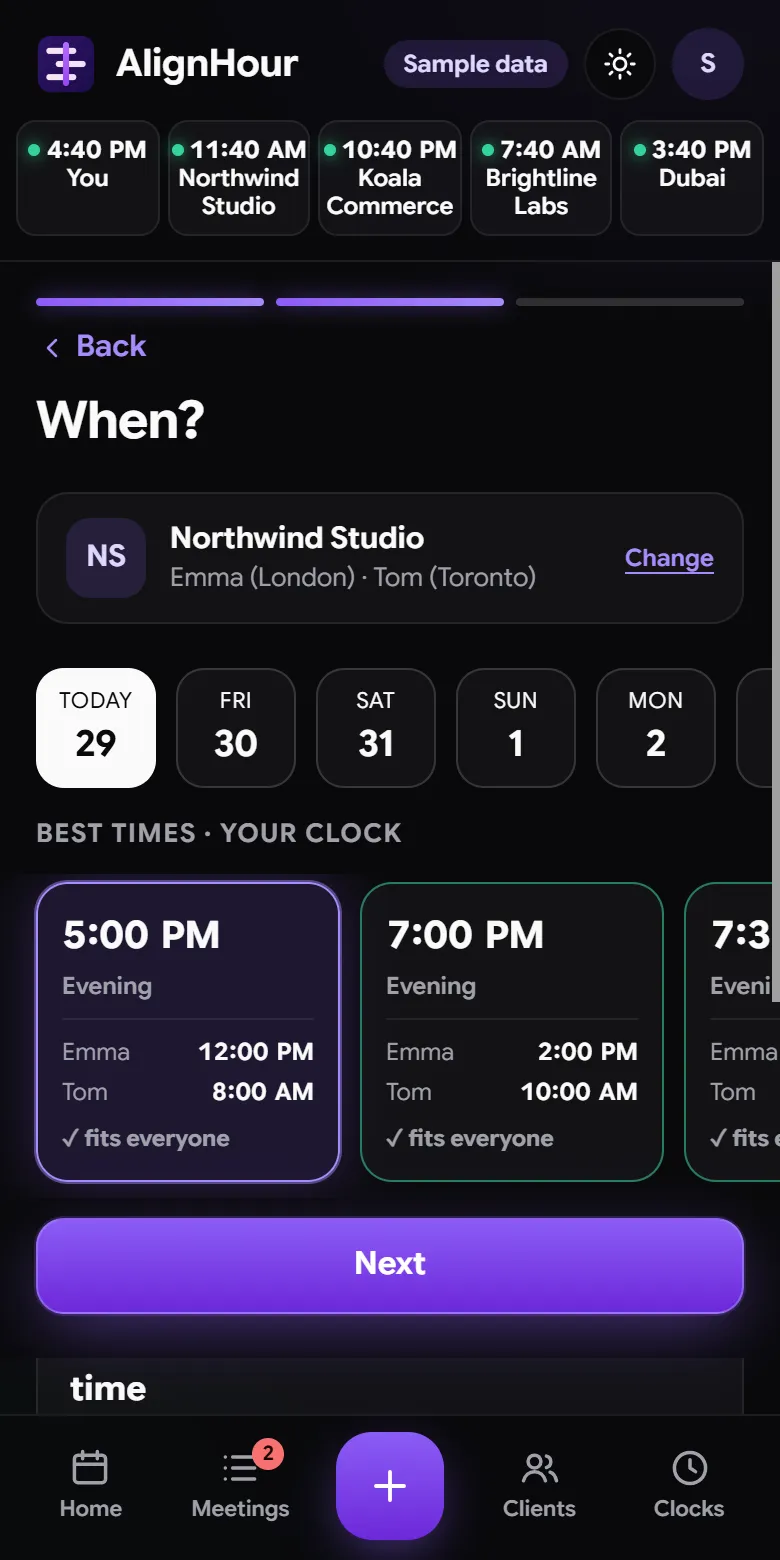
Pick a day, then one of the best times. Each card shows the time for every person, and green means it fits everyone's working hours. Switch between your clock and theirs at any time; your choice stays selected.
-
Or type an exact time
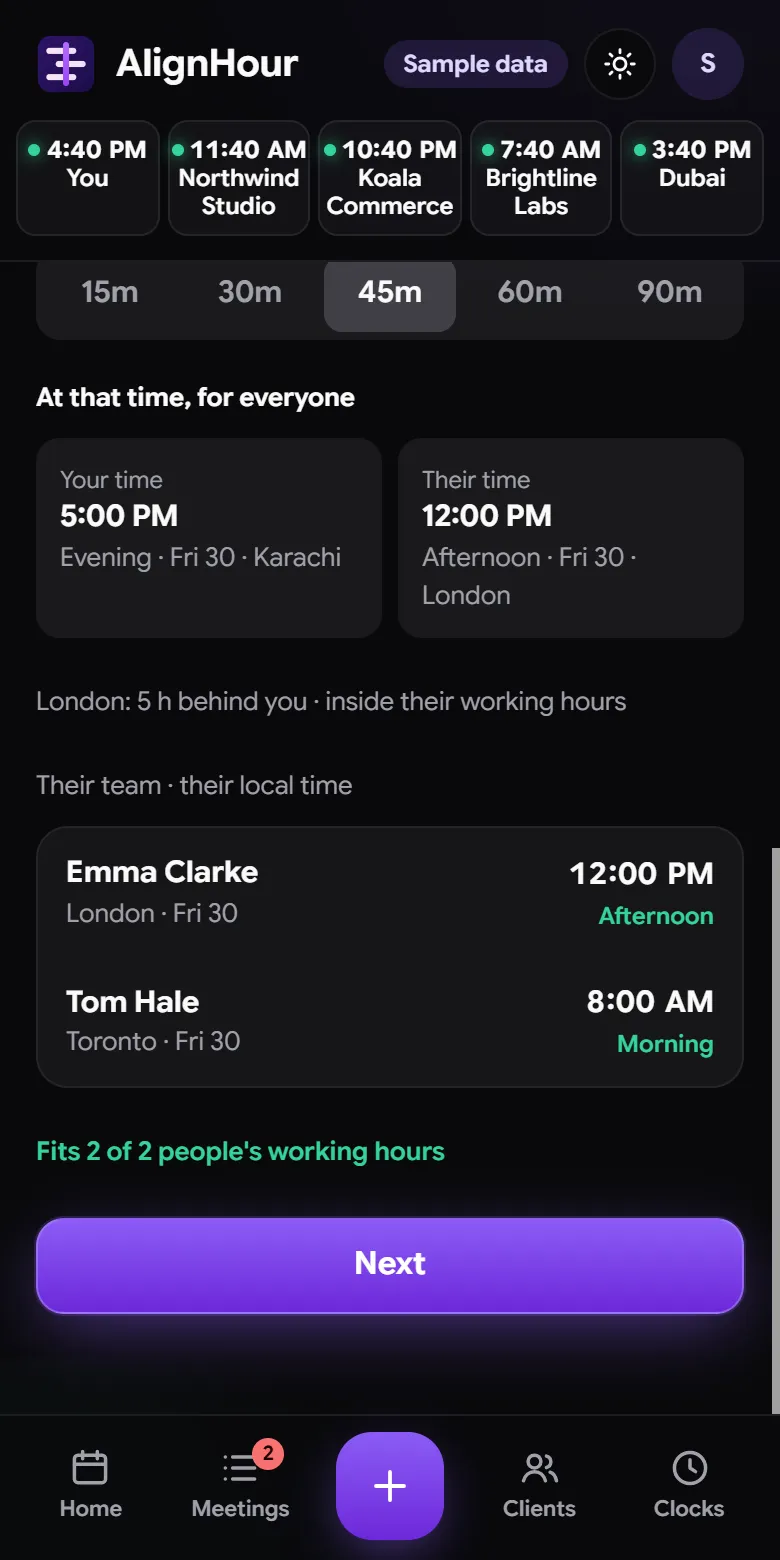
Got a time from your client, like "Friday 10 am my time"? Press Type an exact time, choose whose time it is, and type it. Right under it you see everyone's own time and who is outside their working hours. If it clashes with another meeting, AlignHour warns you first.
-
Send the invite
Add an agenda and choose your reminders (several if you like: 5 or 10 minutes, 30 minutes, 1 hour, 1 day, or your own). Press Send invite. The invite goes from your Google Calendar with a Google Meet link, and every guest sees it in their own time.
-
After the meeting: mark how it went
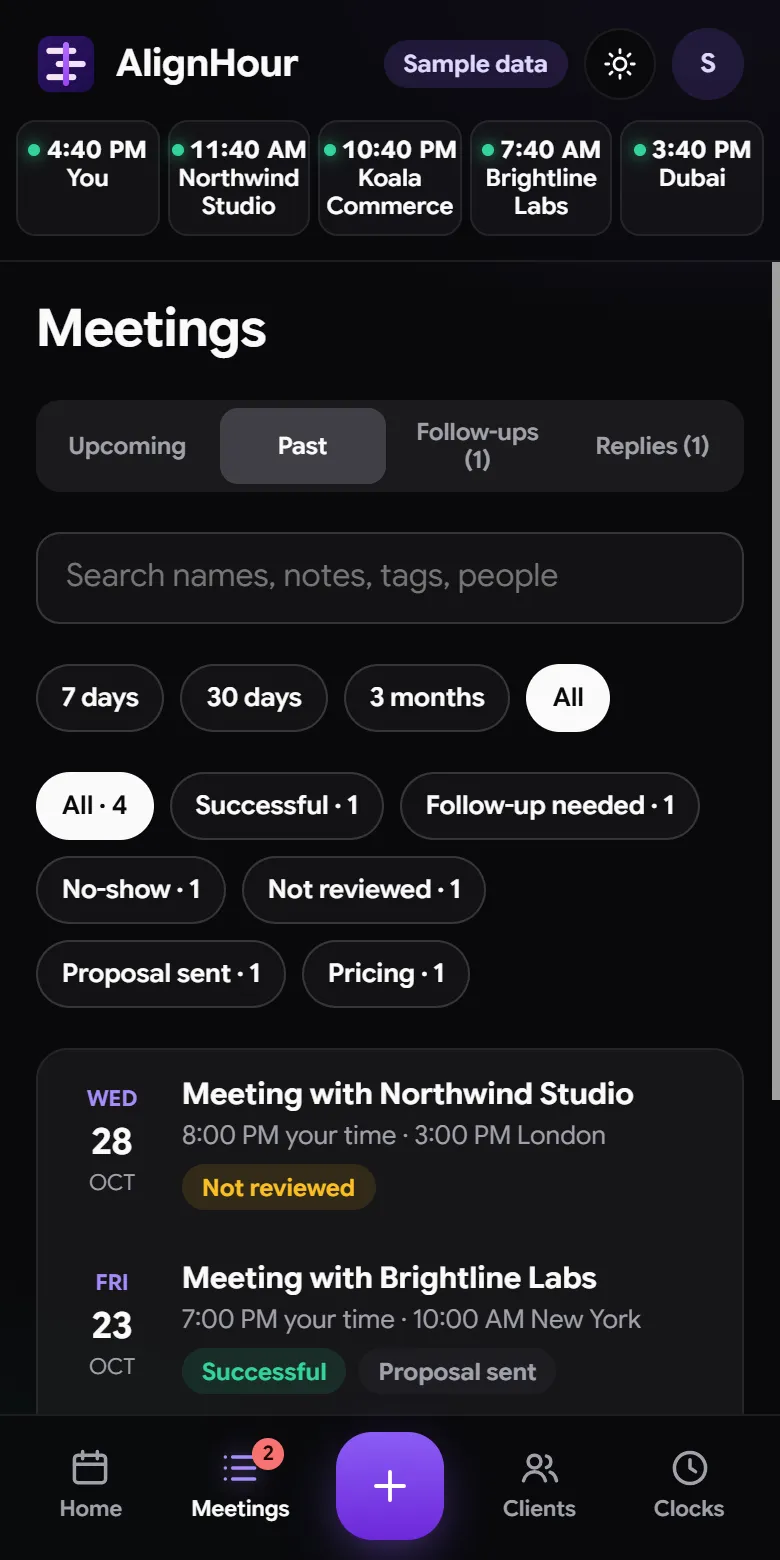
Meetings move from Upcoming to Past on their own when they end. Open one to mark it Successful, Follow-up needed or No-show, add tags and notes, or plan the next meeting. Filters show your results by week, month or all time.
-
Your settings
Tap your initial (top right) for your working hours, light or dark look, 12-hour or 24-hour time, and notifications on each device.
Chrome extension (on your computer)
-
Install it
Add AlignHour from the Chrome Web Store, then click the puzzle icon in Chrome and pin AlignHour so it's one click away. Click Connect Google to send invites and back up your meetings.
-
Book in their time
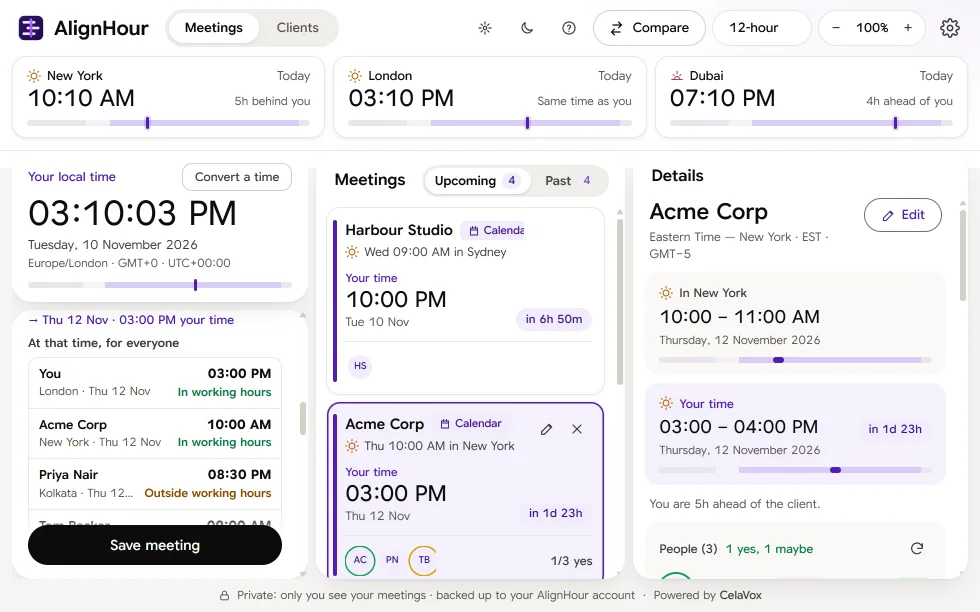
Under New meeting, pick a saved client (or type a new one), then the date and time on their clock. Under the time, "At that time, for everyone" shows each person's own time and if it's inside their working hours. Press Save meeting; if it overlaps another meeting, you'll get a warning first.
-
Upcoming and Past
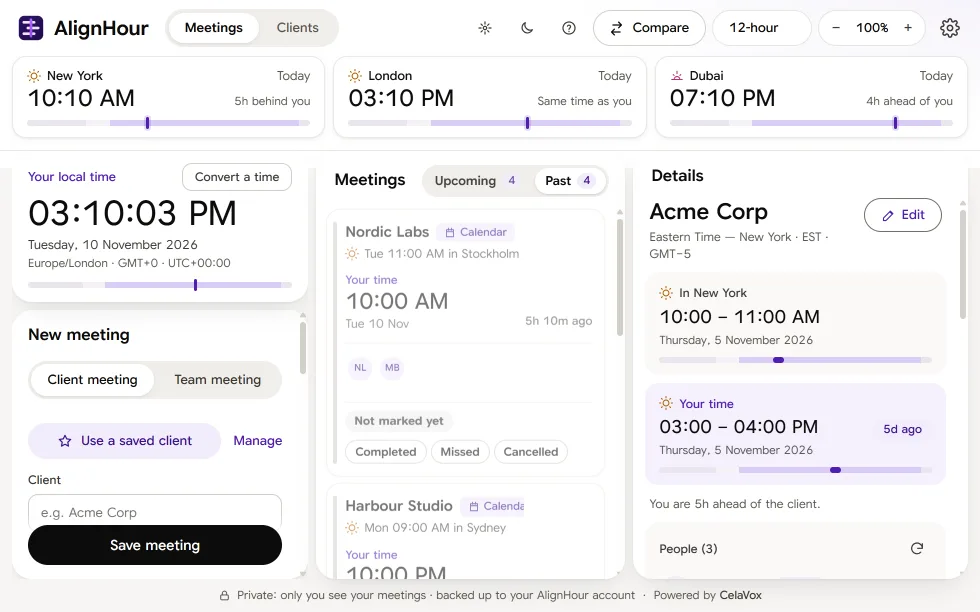
The middle column lists your meetings. When one ends it moves to Past by itself; mark it Completed, Missed or Cancelled in one click.
-
Notifications and settings
You get a notification on your computer 10 minutes before each meeting, with a Join button. Switch it off any time in Settings → Notifications. The top bar also has Compare (two cities hour by hour), 12-hour or 24-hour time, and zoom.
Need help?
Write to support@alignhour.com or use the contact page. We reply in plain words. Your data and what we keep is explained in our Privacy Policy.